![(please configure the [header_logo] section in trac.ini)](/ModelGlue.com/trac.cgi/chrome/site/your_project_logo.png)
Section 4: Request Formats Are Your Friend
Model-Glue makes it easy to reuse your logic and your content across different media and display formats.
- In the PlantOMatic application, first click on the Display link:

- Then click the Print Friendly View link:
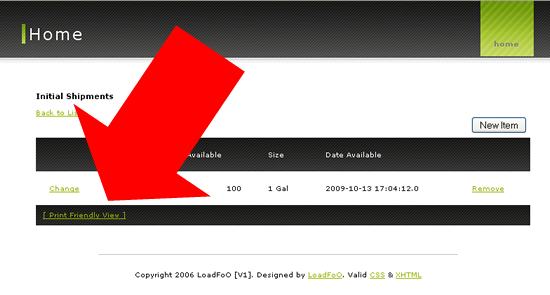
Exercise: Request Format
Notice how a pop up window loads with the same user experience inside? We've pre-made the JavaScript pop up window for you, but we can't call it a print friendly view just yet. Look at all that black ink we'll be wasting! Let's use a request format to exclude the navigation, footer and other extraneous content.
- Open /PlantOMatic/views/Display.Shipment.cfm and find the line for Print Friendly View. The current link looks like this:
<tr>
  <th colspan="6">
    <a href="#linkPrint#" onclick="return popPrintWindow( this.href );">[ Print Friendly View ]</a>
  </th>
</tr>
- We will now add in a request format URL parameter to the link. Append the following to the link:
&requestformat=print
- Next, open /PlantOMatic/config/ModelGlue.xml and find <event-types>. Add a new attribute to the <views> tag called format and assign the value of html.
<views format="html">
Putting It All Together
Let's test our new functionality by reloading your application and clicking the Print Friendly View once again. See how the pop up window only contains the primary content (see figure below)? We excluded the Navigation, Footer and Master.Layout.cfm content through the use of the requestformat URL parameter and format attribute on our templatedPage Event Type.
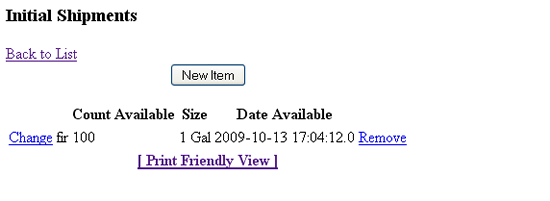
Print Friendly View
More Information
For more information about Model-Glue Request Formats, review the following documentation:
Attachments
-
training04-1.png
(85.9 kB) - added by cfgrok
16 years ago.
Training 04 Image 1
-
training04-2.png
(81.0 kB) - added by cfgrok
16 years ago.
Training 04 Image 2
-
training04-3.png
(19.8 kB) - added by cfgrok
16 years ago.
Training 04 Image 3