![(please configure the [header_logo] section in trac.ini)](/ModelGlue.com/trac.cgi/chrome/site/your_project_logo.png)
| Version 6 (modified by anonymous, 15 years ago) |
|---|
Section 2: Show Me Some Skinning
All great applications have a great look and feel. Part of the challenge of implementing a great look and feel is consistency. Model-Glue 3 makes it really easy to create and manage application layouts as well as apply those layouts to your events. In this module, we will take a static layout and create a structured layout for use in our application.
Exercise: Skinning
At this stage, point your browser at http://localhost/PlantOMatic.
Click on the This Template link and our template will display in your browser. This template can be portioned off into 6 sections:
- Navigation – Contains the logo and the navigation
- Primary Content – Contains the general content for the user
- Secondary Content – Contains any secondary content in a 2 column format
- Footer – Contains footer content
- Message Box – Contains messaging to notify the user of status or error conditions
- Master Page – Contains the general page layout structure and includes the above 4 elements.
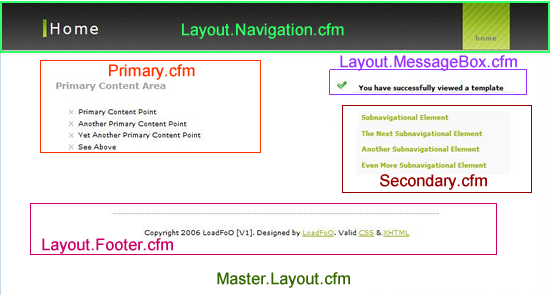
The above diagram shows the content sections and the file in which each will reside
Making the Modules
- Open the file /template.html and review the contents. Each section has been marked out for you with HTML comments. For example, the following section of code indicates the boundaries for the specific content.
- Create a new file using the name indicated (views/layout/Layout.Navigation.cfm) and copy the content in between the comments into the newly created file. Do this for each section (layout.navigation, layout.messagebox, etc).
- primary.cfm already exists so just replace the contents with the contents in the primary section in /template.html
Example of the boundaries for specific content
<div id="menu">
  <!-- Create File: views/layout/Layout.Navigation.cfm -->
  <ul>
    <li><a href="/PlantOMatic" class="current">home</a></li>
  </ul>
  <!-- End Create File: views/layout/Layout.Navigation.cfm -->
</div>
One Master to Rule Them All
Open /PlantOMatic/views/layout/Master.Layout.cfm and review the code. Master.Layout.cfm contains ColdFusion and HTML source code and represents the high level structure of our application – it is primarily in charge of assembling our content modules. We get our content from the ViewCollection and output it on the screen. The calls to the ViewCollection are together at the top of the file:
<cfsilent>
  <cfset navigationcontent = viewcollection.getView( "navigation" ) />
  <cfset primarycontent = viewcollection.getView( "primary" ) />
  <cfset messagecontent = viewcollection.getView( "message" ) />
  <cfset secondaryexists = viewcollection.exists( "secondary" ) />
  <cfset secondarycontent = viewcollection.getView( "secondary" ) />
  <cfset footercontent = viewcollection.getView( "footer" ) />
</cfsilent>
Each module is outputted in the correct place using standard ColdFusion output notation like so:
#primarycontent#
Putting it all Together
Our last task in skinning is to create a reusable mechanism to use our layout. Model-Glue 3 introduces the concept of an Event Type. Much like Types in Object Oriented Programming, an Event Type contains specific behavior and is addressable by a specific name. Event Types in Model-Glue can contain behavior that is executed BEFORE, AFTER or BEFORE and AFTER an Event is executed.
Our template runs after Events are processed. Open /PlantOMatic/config/ModelGlue.xml and insert the following code in between the <event-types></event-types> tags.
<event-type name="templatedPage">
  <after>
    <views>
      <include name="navigation" template="layout/Layout.Navigation.cfm">
        <value name="xe_ShipmentList" value="Shipment.List" />
      </include>
      <include name="message" template="layout/Layout.MessageBox.cfm" />
      <include name="footer" template="layout/Layout.Footer.cfm" />
      <include name="main" template="layout/Master.Layout.cfm" />
    </views>
  </after>
</event-type>
Then add type="templatedPage" to each Event Handler, like so:
<event-handler name="default" type="templatedPage">
  <views>
    <include name="primary" template="primary.cfm" />
  </views>
</event-handler>

<event-handler name="page.error" type="templatedPage">
  <views>
    <include name="primary" template="layout/Master.Exception.cfm" />
  </views>
</event-handler>

<event-handler name="page.missing" type="templatedPage">
  <views>
    <include name="primary" template="layout/Master.MissingEvent.cfm" />
  </views>
</event-handler>
A Flexible One Column Template
Now, when we run our application at http://localhost/PlantOMatic/ we see our template in action:
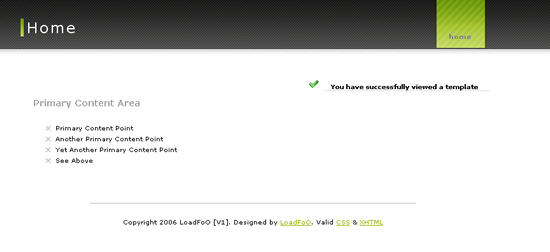
One Column Layout
What about Two Columns?
To see the benefits of this flexible template, let's add a piece of secondary content. Open /PlantOMatic/config/ModelGlue.xml and update the default Event Handler to have an include for secondary:
<event-handler name="default" type="templatedPage">
  <views>
    <include name="primary" template="primary.cfm" />
    <include name="secondary" template="secondary.cfm" />
   </views>
</event-handler>
Now when our Event Handler runs, Model-Glue will include the secondary content inside of the ViewCollection. Since we test for the existence of secondary in /PlantOMatic/views/layout/Master.Layout.cfm and adjust the HTML markup accordingly, the simple presence or the absence of secondary in the ViewCollection will turn our layout from a single column to a two column layout seamlessly.
A Flexible Two Column Template
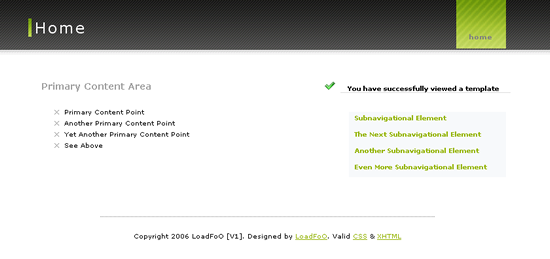
Two Column Layout
Housekeeping
We have a few items to take care of before we move on.
- Open /PlantOMatic/views/layout/Layout.Navigation.cfm and replace the content:
<cfsilent>
  <cfset event.copyToScope( variables, "xe_ShipmentList") />
  <cfset xe_ShipmentList = event.linkTo( xe_ShipmentList ) />
</cfsilent>

<cfoutput>
<ul>
  <li><a href="#xe_ShipmentList#" class="current">home</a></li>
</ul>
</cfoutput>
- Open /PlantOMatic/views/layout/Layout.MessageBox.cfm and replace the content:
<cfsilent>
  <cfset MSGQuery = event.getValue( "MessageContainer" ).getAllMessages() />
</cfsilent>

<!-- Begin User Message Box -->
<cfif MSGQuery.RecordCount gt 0>
  <div id="highlightnews">
    <ul>
      <cfoutput query="MSGQuery">
        <li class="#MSGQuery.Type#Message">#MSGQuery.Message#</li>
      </cfoutput>
    </ul>
  </div>
</cfif>

<!-- End User Message Box -->
Section 2 Summary
In this section, we learned how to skin a static template, work with the Model-Glue framework to create a flexible layout and configure our Event Handlers for templating. For more information, we suggest the following documentation:
Attachments
-
training02-1.png
(86.5 kB) - added by cfgrok
16 years ago.
Training 02 Image 1
-
training02-2.png
(47.0 kB) - added by cfgrok
16 years ago.
Training 02 Image 2
-
training02-3.png
(59.5 kB) - added by cfgrok
16 years ago.
Training 02 Image 3